
Leads
Enrichment
How Updately fills in a lead's profile, why it matters for your ICP, and how to research each contact with your own questions.
Finding someone often gives you little more than a name and a LinkedIn link. Enrichment fills in the rest, so your ICP has something to judge and your messages have something to say.
There are two kinds:
- Profile enrichment happens automatically for every lead.
- Enrichment questions are research questions you write for a campaign.
Profile enrichment
Updately reads each lead's LinkedIn profile and fills in:
| Field | Used for |
|---|---|
| Job title and headline | ICP title matching, messages |
| Company | ICP, messages |
| Location | ICP location matching |
| Work history and education | ICP and AI scoring, AI-written messages |
| Languages, certifications, followers and connections | Extra profile context |
| Profile photo | Shown on the Contacts page |
Profiles are read through your connected LinkedIn account. Without one, enrichment can't run, and leads stay as they were found.
When it runs
- Leads from signals are enriched before your ICP checks them. That order matters. An ICP can't match a title it can't see.
- CSV imports are enriched after the import, for rows missing a name, company or title. If you picked an ICP, filtering waits until enrichment is done.
Headline is not job title
A LinkedIn headline is something people write about themselves, like "B2B Sales Strategist | Scaling Startups". The job title is a separate field. Your ICP matches the real job title first, and only falls back to the headline when there is no title.
If leads arrive with no title or company, see Leads are missing job titles.
Email addresses
Emails aren't looked up automatically. A lead has an email when one came with it, from your CSV or when you added the person by hand.
On the Contacts page, a lead without an email shows a mail icon. Hover it to see "Enable email credits to get emails". Contact us if you want email lookups on your workspace.
Enrichment questions
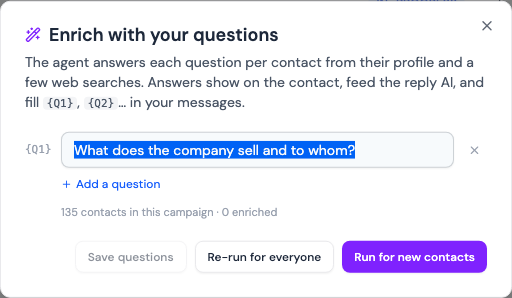
Enrichment questions let you research every contact in a campaign the way a good SDR would, before you message them. You write the questions. An AI agent answers them for each contact from their profile and a few web searches.
Setting them up
- Open a campaign and go to its Contacts tab.
- Click Enrich.
- Write up to 8 questions. For example:
- "Do they sell to SMBs or enterprise?"
- "What tools do they already use for this?"
- "Has the company raised or hired recently?"
- Click Run for new contacts, or Re-run for everyone after changing the questions. Save questions saves them without running.
The dialog shows how many contacts are enriched and how many are still running.
Where the answers go
- On the contact. In the campaign's Contacts tab, expand answers under a contact to read them. A question the agent couldn't answer shows Unknown.
- In your messages. Answers fill
{Q1},{Q2}and so on, in the order of your questions. - In replies. The AI that drafts replies can see the answers.
To answer or re-run the questions for one contact, click the wand icon on their row.
New contacts aren't researched automatically. When new people join the campaign, open Enrich and click Run for new contacts.
Tips
- Ask things you'd actually use in a message. "What does the company do, in one line?" earns its place. "What's their favourite colour?" doesn't.
- Ask one thing per question. Short questions get clearer answers.
- Check a few answers before using
{Q1}in a message to everyone.