
Workspace & settings
LinkedIn accounts
Connect more than one LinkedIn account, set each one's limits and schedule, and send a single campaign from several of them.
Every connection request and message Updately sends goes out from a real LinkedIn account. You can connect more than one — for example, one for each person on your sales team — and manage them all on the Accounts page (in the sidebar under Setup).
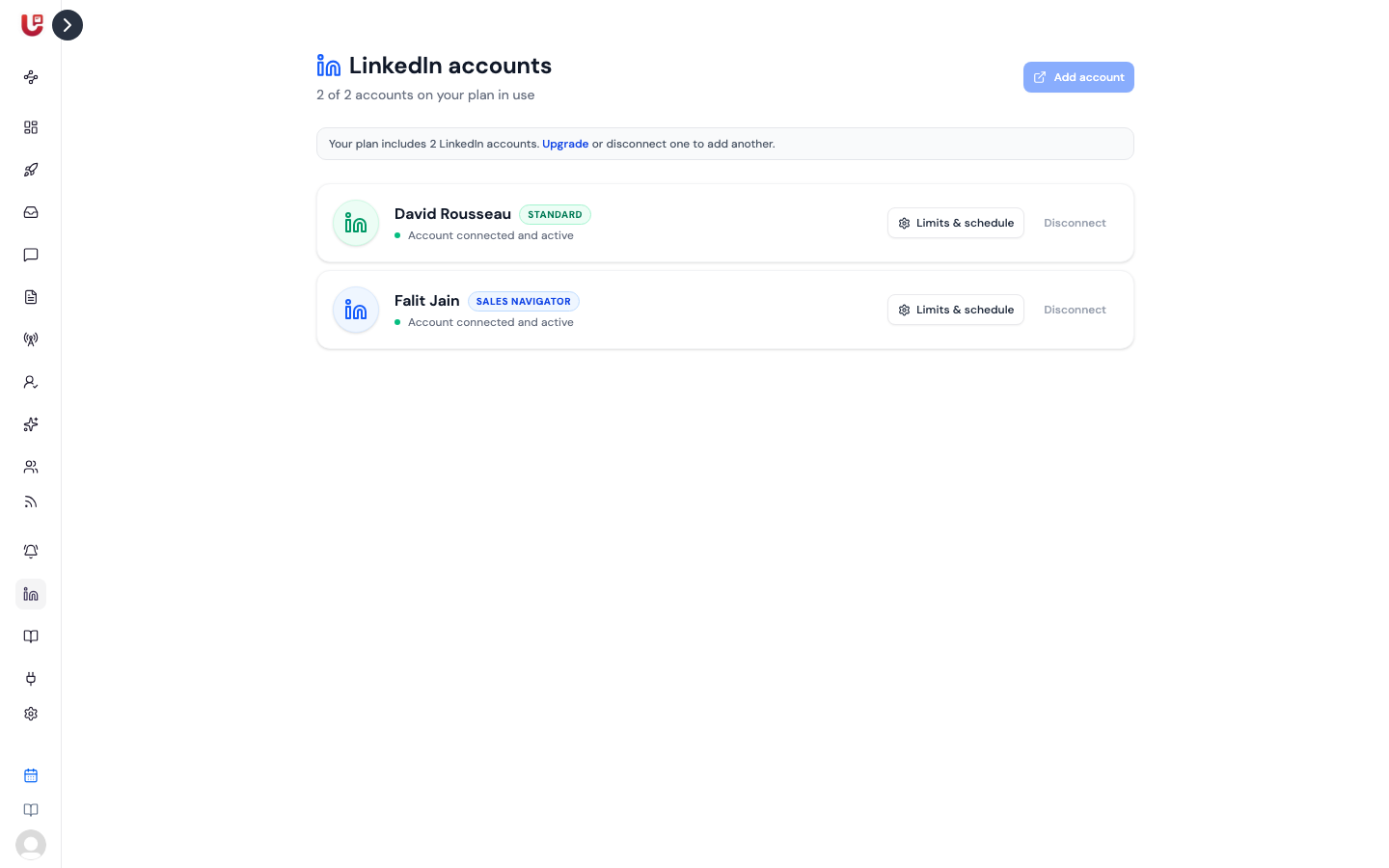
What the page shows
At the top you'll see how many accounts you're using, for example 2 of 3 accounts on your plan in use, and how many need reconnecting.
Each account has its own card:
| On the card | What it means |
|---|---|
| Standard or Sales Navigator | The type of LinkedIn account. Sales Navigator accounts get higher sending limits. |
| Account connected and active | Everything is working. |
| LinkedIn session expired — reconnect to resume outreach | LinkedIn ended the session. Nothing sends from this account until you reconnect. |
| Account removed from LinkedIn — reconnect to resume | The account was removed on LinkedIn's side. Reconnect it. |
Accounts that need attention are listed first. Once you have six or more accounts, a search box appears.
Add another account
- Click Add account (or Connect LinkedIn if you have none yet).
- Under Region, pick the country this LinkedIn account usually signs in from. Automatic works for most people.
- Click Continue. A sign-in page opens in a new tab.
- Sign in as the person who owns that LinkedIn account.
The full walkthrough, including the cookie option if sign-in loops, is in Connect your LinkedIn account.
Each account is one person's own LinkedIn profile, and they need to sign in to connect it. The easiest way is to invite them to the workspace and have them connect it themselves.
Plan limits
Your plan sets how many LinkedIn accounts you can connect. When you reach it, Add account is disabled and the page shows Upgrade or disconnect one to add another. See Billing and subscription.
What each account does
- Sends the connection requests and messages for the campaigns that use it.
- Has its own daily and weekly limits. Adding accounts adds sending capacity; it doesn't raise any one account's limits.
- Has its own conversations. Replies to its outreach show up in the Unified Inbox.
- Goes through its own 7-day warm-up after it's connected.
Limits & schedule
Click Limits & schedule on an account to open its sender settings:
| Setting | What it does |
|---|---|
| Region | The country Updately connects this account through. Keep it where the account normally signs in from — an account that suddenly appears in another country is what LinkedIn flags. |
| Weekly Quotas | Profile visits, invitations and messages per week. Quotas reset every Sunday at midnight. |
| Launch Hour | When this account starts its day. Activity runs for about 4 hours from this time, in the region's timezone. |
| Active Days | Which days this account sends. Monday to Friday by default. Pick at least one. |
The dialog also shows Current Usage This Week for the account. Click Save Quotas to save.
You can set quotas lower than Updately's defaults. You can't push them above Updately's safety caps — anything higher is capped. See Sending limits and account safety.
If no region is set, the launch hour is read as UTC. Pick a region to fix that.
Send one campaign from several accounts
A campaign can send from more than one account. Contacts are spread evenly across the accounts you pick, and each account sends within its own limits.
When you create a campaign: choose the Sender Account, then tick any others under Also send from.
On an existing campaign:
- Open the campaign and go to the Workflow tab.
- In the Sender bar, click Change.
- Select every account the campaign should send from. The first one you pick is marked Main. Use Select all to add every account.
- Click Send from N accounts (or Save if you picked just one).
What happens to contacts already in the campaign:
- Not contacted yet — re-spread across the accounts you picked.
- Already mid-sequence — stay with the account that sent their invitation. A conversation never jumps to a different LinkedIn profile halfway through.
When a campaign uses more than one account, its contacts list shows which account each contact is assigned to.
The limits shown in the campaign's Sender bar are for the main account. Each other account still sends within its own limits.
To go back to one account, open Change again and leave just one selected.
Reconnecting
LinkedIn sessions expire every few weeks — that's normal. When it happens, the card shows a Reconnect button. Click it and sign in again.
Reconnecting doesn't restart paused campaigns or signals. The steps and what to check afterwards are in LinkedIn account disconnected.
Disconnecting an account
Click Disconnect on the card and confirm. This frees up a slot on your plan.
Disconnecting an account pauses the campaigns that use it as their main sender. Your signals keep running on your other connected accounts. If it was your last connected account, signals are turned off too; turn the ones you want back on after you reconnect.