
Signals
Signal types
Every signal type you can create, what each one needs, and how runs, schedules and the "Leads running low" warning work.
A signal is a standing rule for finding people. This section has one page per signal type. For the idea behind signals, read Signals first.
Which signal to use
| Signal | Finds | Needs a connected LinkedIn account |
|---|---|---|
| Keyword monitoring | People posting on LinkedIn about your keywords | No |
| LinkedIn Jobs | Decision makers at companies hiring a role | Yes |
| Profile Search | People matching titles, keywords, companies and location | Yes |
| Warm Lookalike | People like one of your best customers | Yes |
| Network | Your existing 1st-degree connections | Yes |
| Post Engagement | People who reacted to or commented on posts | Yes |
| Profile Viewers | People who viewed your LinkedIn profile | Yes |
| Sales Navigator List | The leads saved in a Sales Navigator lead list | Yes, with Sales Navigator |
| Tech Stack | People at companies using a technology | Recommended |
| Manual / Bulk CSV Import | A list you already have | No |
Not sure where to start? Profile Search works from day one. It doesn't wait for anyone to post, hire or engage.
Creating a signal
- Go to Signals and click New Signal.
- Choose type. The type can't be changed after the signal is created.
- Configure. Fill in the fields for that type. Each page in this section explains them.
- Route leads. Pick the lead lists the leads go to. You can pick more than one. Then pick an ICP Profile, or No ICP to keep everyone the signal finds.
- Click Create Signal.
Before saving, Updately checks your setup. If it spots a problem, such as a job title that will match nobody or an ICP that rules out the people the signal finds, it lists it above the button. Some problems come with a one-click fix. You can fix them, click Re-check, or click Save anyway.
You can also create signals inside the Pipeline builder. It offers Run preview, which shows you real people the signal would find before you commit.
Signal slots
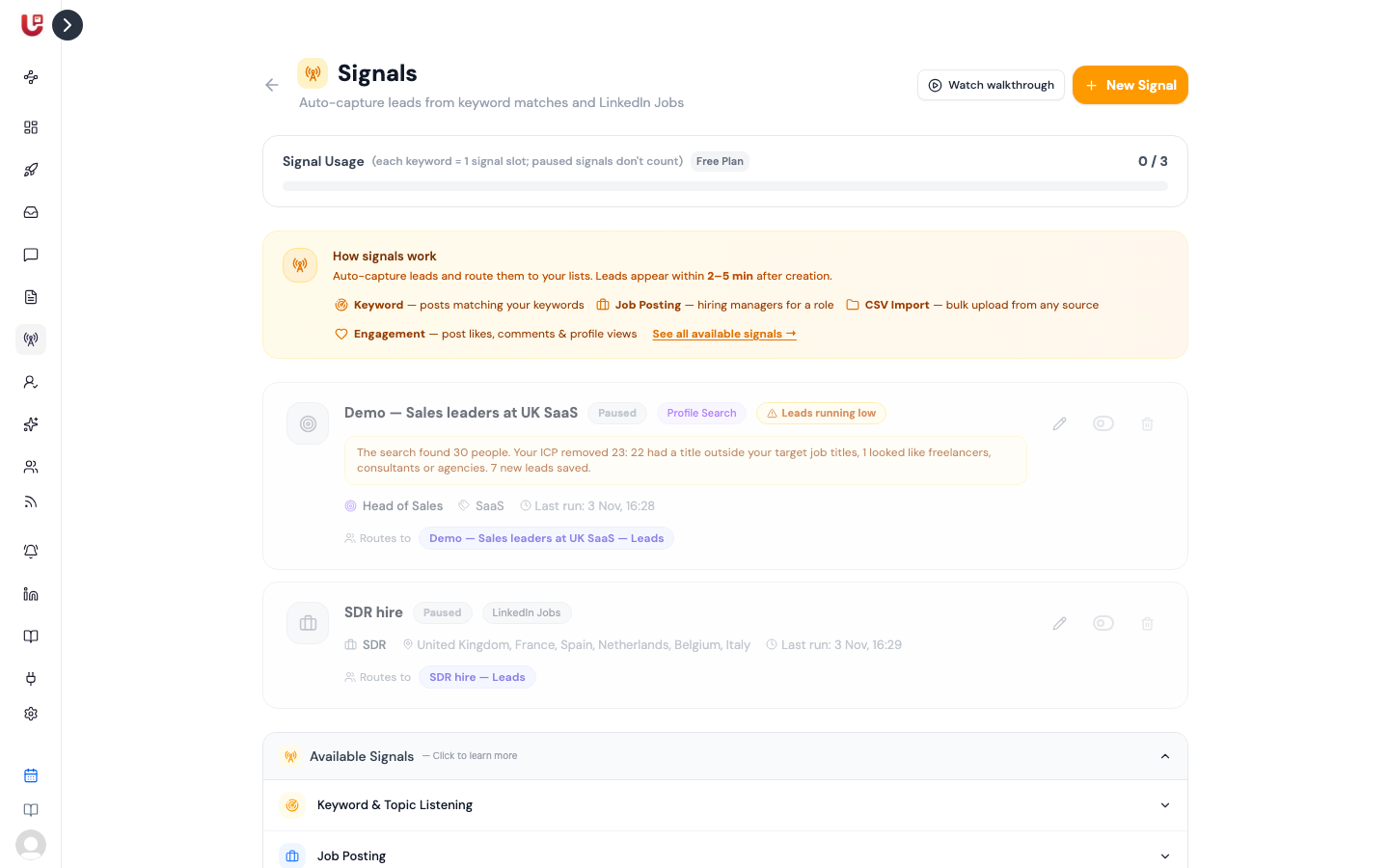
Your plan includes a number of signal slots. The Signal Usage bar on the Signals page shows how many you've used.
- Most signals use 1 slot.
- A keyword monitoring signal uses 1 slot per keyword.
- Paused signals don't use a slot.
When you hit the limit, pause a signal, remove keywords, or upgrade your plan.
When signals run
- On creation. Most signals start their first run as soon as you save them. Leads usually appear within a few minutes. A keyword signal pulls the past month of matching posts instead.
- On a schedule. After that, each signal runs on its own schedule, at most once a day. Some types let you pick Daily, Every 2 days, Every 3 days or Weekly. The rest run daily.
- After an edit. When you change what a signal searches for, tick Run now with the new settings to run it straight away. Name, list and ICP changes apply from the next scheduled run.
There is no Run now button on the Signals page. Signals run on their schedule, and the signal card shows Last run and Next run.
Reading a signal card
| Badge | Meaning |
|---|---|
| Active / Paused | Whether the signal runs. Use the toggle to switch. |
| Running… | A run is in progress. The card updates when it finishes. |
| Last run failed | Hover to see why. The most common cause is a disconnected LinkedIn account. |
| Leads running low | The last run saved fewer than 15 new leads. See below. |
Leads running low
When a run saves fewer than 15 new leads, the card shows Leads running low. Under it, Updately explains why the run was thin. For example: "The search found 24 people. Your ICP removed all 24."
That tells you which setting to change:
- The search found few people. Widen the search. Add job titles, widen the location, or remove filters.
- The search found people, but your ICP removed them. Loosen the ICP, or switch it to Broader. See Your ICP.
- Everyone found was already in your list. The signal has covered its pool. Widen it to keep new leads coming.
You also get a daily email when your signals find new leads. It lists each signal that ran, how many leads it found, and flags thin ones with "a wider search would find more". If a signal finds nothing five runs in a row, you get an email saying your signals need a look.
Only new leads count. A person who is already in the list isn't added again, so a signal that keeps finding the same people will show as running low.
Pausing and deleting
- Pause a signal with its toggle. It stops running and frees its slot.
- Delete removes the signal. Leads it already found stay in your lists.