
Leads
Importing a CSV
Upload a CSV of leads into a list: the columns, what happens to duplicates, big files that finish in the background, and campaign enrolment.
Already have a list? An export from another tool, event attendees, a sheet you built by hand — bring it straight into Updately.
Before you start
Your file needs:
- A header row
- A LinkedIn profile URL on every row you want imported
Everything else is optional. Updately fills in missing names, titles and companies after the import.
Columns
| Field | Required | Also recognised as |
|---|---|---|
| LinkedIn URL | Yes | linkedin_url, linkedin, profile_url, profile link |
| No | email_address, e-mail | |
| First Name | No | first_name, first |
| Last Name | No | last_name, last |
| Company | No | company_name, organization, org |
| Title | No | headline, job_title, position, role |
| Location | No | city, country, region |
Any other column is kept too. You can use it in campaign messages by its header
in braces. A column called Event becomes {Event} in a message template.
Importing
- Go to Contacts & Lists, open the Lists tab, and click Import on the list you want.
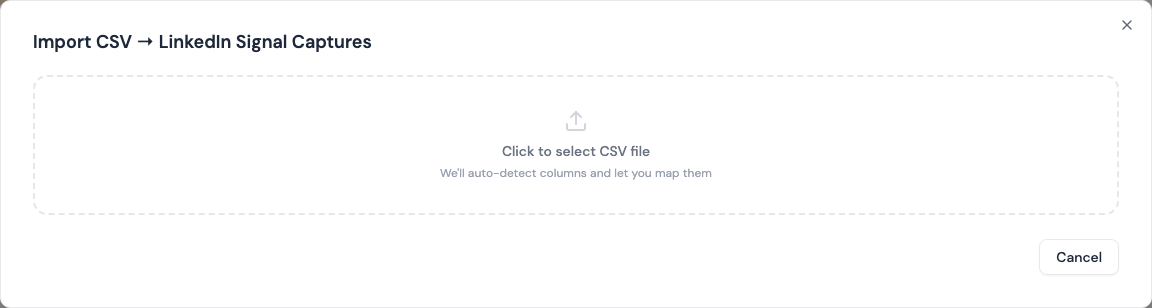
- Click Click to select CSV file and choose your file.
- Check the column matches. Updately matches common headers for you. Change any that are wrong, or set a field to — skip —.
- Optionally pick an ICP under ICP Filtering (Optional). See below.
- Click Import.
You can also import through a Manual / Bulk CSV Import signal, which tags each lead with the signal's name.
What happens to each row
| Result | Why |
|---|---|
| Imported | Added to the list |
| Skipped | The row has no LinkedIn URL |
| Already in the list | That person is in the list already, or appears twice in the file. They aren't added twice. |
When the import finishes you see the three counts, e.g. "480 contacts imported · 12 skipped · 8 already in the list".
Big files
A small file finishes while you wait. A big one keeps going in the background:
- The dialog shows a progress bar. You can close it. The import keeps running.
- The list shows Importing with a percentage on the Lists tab.
- When it's done, you see the counts.
If an import stops partway, you see how many contacts made it in and why. Those contacts stay in the list.
Only one import can run into a list at a time. If you try a second, you're asked to wait for the first to finish.
How long sending will take
For files of 200 rows or more, the import dialog estimates how long your campaign will take to reach everyone. LinkedIn allows about 100 invitations a week per account. A 2,000-person list is about 5 months from one account. Connect more accounts to go faster.
After the import
Enrichment. Leads missing a name, company or title are looked up from their LinkedIn profile. This needs a connected LinkedIn account. See Enrichment.
ICP filtering. If you picked an ICP, Updately enriches the new leads first, then removes the ones that don't match. Only the rows you imported are checked; leads already in the list are left alone.
Campaigns. If the list is attached to an active campaign, the new leads that passed the ICP are enrolled automatically, once enrichment and filtering finish.
Tips
- LinkedIn URLs with readable names (
/in/jane-doe) work best. - Leave the ICP off for a hand-picked list. You chose those people already.
- Use one list per source, so you can see later which source converts.