
Listening & insights
Alerts
Get an email report when Updately finds new Urgent or High priority posts, and find where Slack alerts are set up.
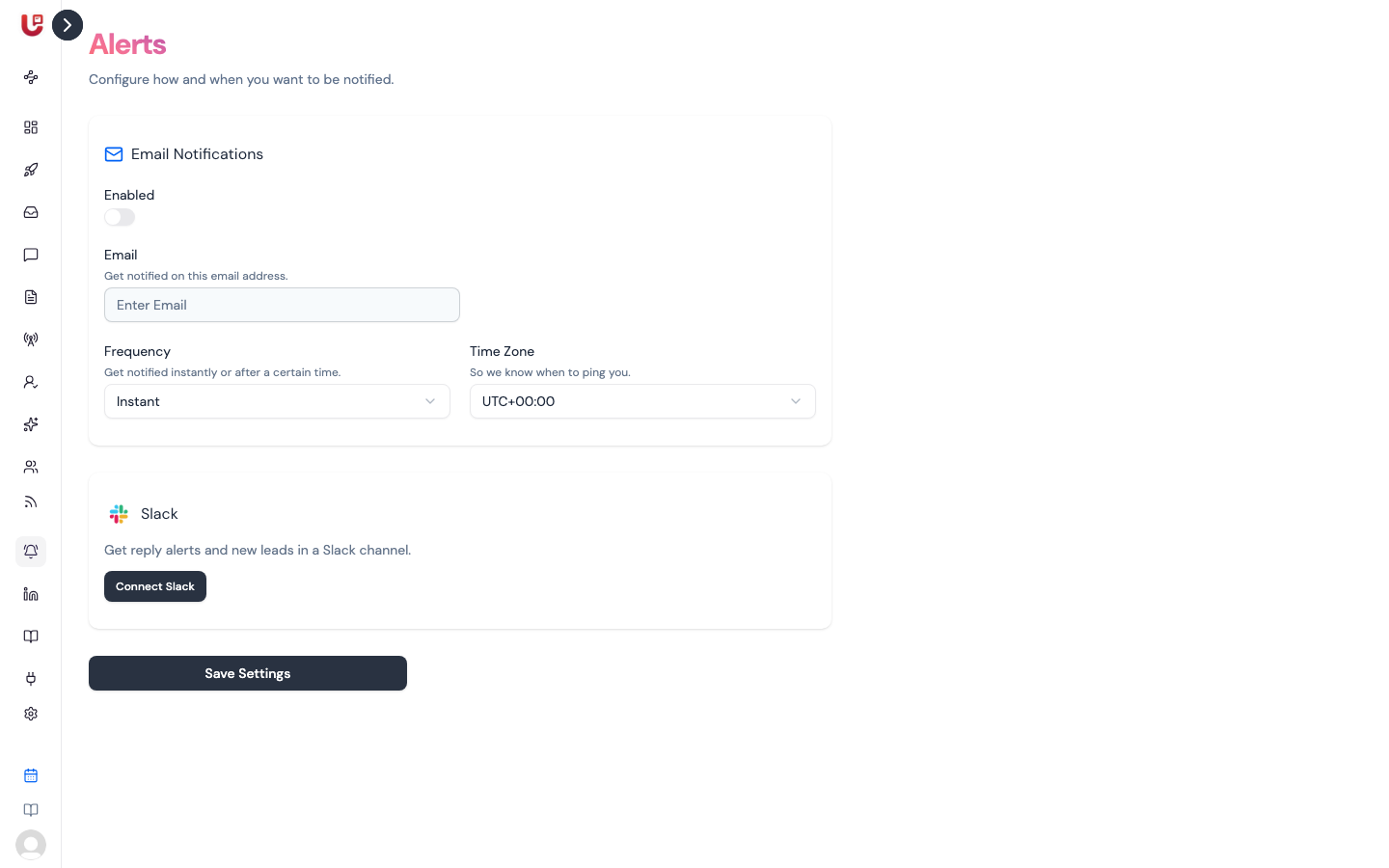
Alerts in the sidebar controls where Updately tells you about new posts. It has two cards: Email Notifications and Slack.
Email report
When Updately finds new Urgent or High priority posts, it emails you a report. The subject reads like "Updately.ai Daily Report - 4 New Leads Found". The email features the top posts and a summary of what was found.
- Open Alerts.
- Under Email Notifications, enter the address in Email.
- Click Save Settings.
If you leave Email blank, the report goes to your account email.
Switch Enabled off to stop the report emails. The card's Frequency and Time Zone settings are saved, but the report currently goes out whenever new posts are found.
What's in the report
- Only Urgent and High priority posts. Medium and Low posts never trigger an email.
- Only posts you haven't been emailed about before.
- Only posts from keyword groups you still track. Paused groups are left out.
If nothing new and important turned up, no email is sent. A quiet inbox means no new leads, not a broken alert.
Getting too many posts that aren't leads? Tell Updately what to leave out in Preferences. Fewer posts will reach High priority, so the report gets shorter and sharper.
Slack
The Slack card links to Settings → Slack, where you connect a Slack channel. Slack gets reply alerts from your LinkedIn campaigns and new leads from your signals. It doesn't receive Feed posts — use the email report for those.