
Workspace & settings
API keys and MCP
Run Updately from Claude, ChatGPT or Cursor, or create an API key for your own integrations.
You can drive Updately from an AI assistant: ask Claude to build a signal, check how a campaign is doing, or approve the replies waiting for you. This works through MCP, the standard way AI assistants connect to other tools.
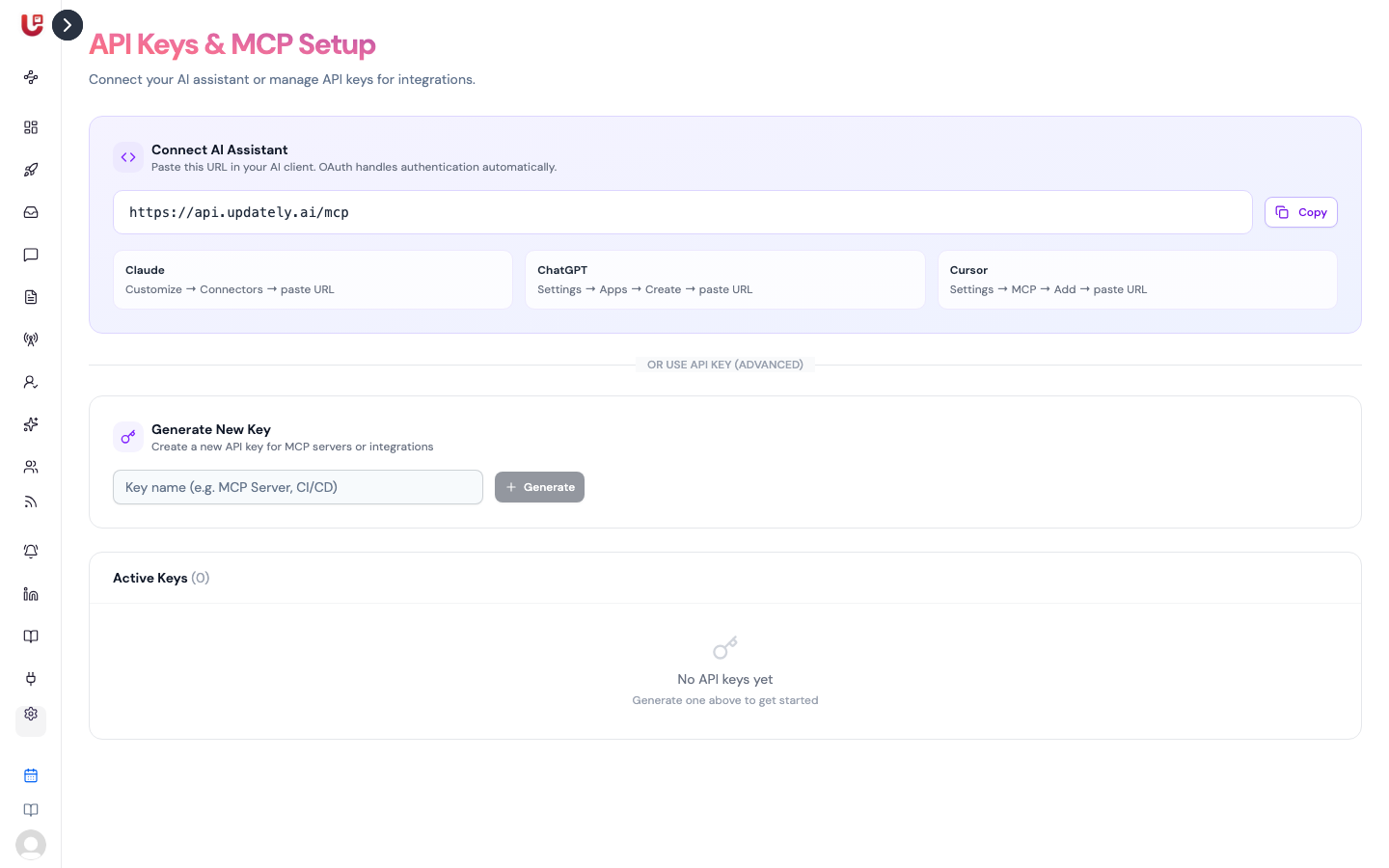
Set it up in Settings → API Keys (the page is called API Keys & MCP Setup).
Connect an AI assistant (recommended)
At the top of the page, under Connect AI Assistant, is the Updately MCP URL:
https://api.updately.ai/mcp
Click Copy, then add it in your assistant:
| Assistant | Where to paste it |
|---|---|
| Claude | Customize → Connectors → paste the URL |
| ChatGPT | Settings → Apps → Create → paste the URL |
| Cursor | Settings → MCP → Add → paste the URL |
Your assistant then opens an Authorize Access page:
- Enter your Updately email and click Continue.
- Enter the 6-digit code we email you.
- Click Verify & Authorize.
That's it. You don't need an API key for this.
Sign in with the email you log in to Updately with. Teammates use the email they were invited with. If someone is removed from the workspace, their assistant loses access straight away.
What you can ask it to do
Once connected, your assistant can work with most of Updately, for example:
- Create, preview, update and run signals
- Create and manage lead lists, ICPs and pipelines
- Create, copy, start and pause campaigns, and edit their steps
- Enrol contacts and see a campaign's stats
- Read conversations, and approve or discard AI-drafted replies
- Check your LinkedIn accounts' status and usage
Use an API key (advanced)
Use an API key when your AI client can't do the sign-in above, or when you're connecting your own code.
Generate a key
- Under Generate New Key, type a name you'll recognise, like "Cursor" or "CI/CD".
- Click Generate.
- Copy the key straight away and store it somewhere safe.
Get the MCP configuration
After generating a key, click Show MCP Configuration for a ready-made config with your key filled in. There are two versions:
- npx (Recommended) — works with Claude Desktop, Cursor, Gemini CLI and other MCP-compatible tools. Nothing to install.
- HTTP (Streamable) — a direct connection, for clients that support it.
Copy the snippet into your client's MCP settings.
An API key gives full access to your workspace. Treat it like a password: don't paste it into shared documents or commit it to code.
Managing keys
Active Keys lists every working key with its name, when it was created and when it was last used. Use the eye and copy icons to see or copy a key.
To revoke a key, click the bin icon and confirm with Yes. Anything using that key stops working straight away. Revoked keys move to Revoked Keys.
Assistants you connected with the sign-in flow also appear here, with names starting MCP OAuth. Revoke one to disconnect that assistant.
Zapier, Make and n8n
To send Updately events into these tools, use a webhook from Integrations.