
Outreach
Templates and variables
The Templates page, the default template the AI writes from, and every variable you can put in a message.
The Templates page holds the base messages your AI writes from. Your default template is the style guide: when a step is AI-written, the AI takes its tone, structure and length, then writes a unique message for each lead from their profile, company and the signal that found them.
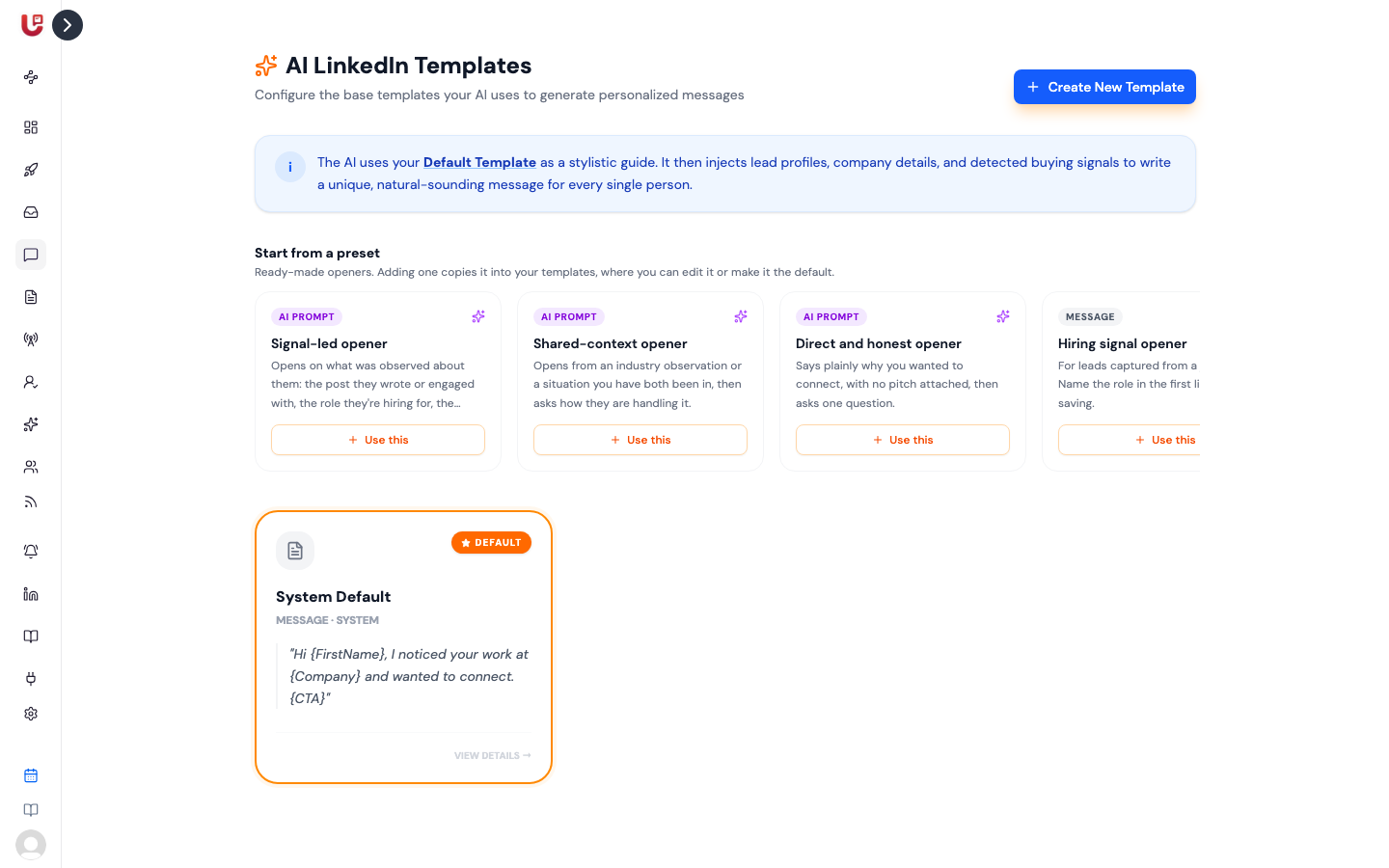
Open it from Templates in the sidebar.
These are message templates. Campaign templates — a whole sequence with reply rules, picked under Start from when you create a campaign — are different. See Building a campaign.
The default template
Every workspace starts with System Default, a short opener. Once you make one of your own the default, the AI follows yours instead.
To change the default, hover a template and click the star. The current one has a Default badge.
The single best improvement you can make: write the default the way you actually write. The AI copies what it sees.
Presets
Start from a preset offers ready-made openers. Click one to copy it into your templates, where you can edit it or make it the default.
Creating a template
Click Create New Template.
| Field | What to put |
|---|---|
| Template Name | Something you'll recognise in a dropdown |
| Template Type | Message, Invitation or AI Prompt |
| Message Template | The text, up to 700 characters. Click a variable to insert it. |
An AI Prompt template isn't a message. It's instructions for the AI, like "Reference their post, ask one question, under 60 words."
Use Live Preview on the right: pick a contact and click Generate Preview to see what the AI writes for that person from your template.
Where templates are used
- Your default guides every AI-written message.
- On a message step set to AI Follow-up, Use a template lets you pick any of your Message or AI Prompt templates for that step instead.
Variables
Variables are filled in per contact when the message is sent. Write them in single curly braces, exactly as shown.
| Variable | Becomes | If it's missing |
|---|---|---|
{FirstName} | Their first name | "you" |
{LastName} | Their last name | Left blank |
{Company} | Their current company | "your current place" |
{JobTitle} | Their LinkedIn headline | "lead" |
{Intent} | What their signal matched — the topic they posted about, or the role being hired for | The whole sentence is left out |
{PostRelated} | AI-written, from their latest post | The whole sentence is left out |
{ProfileRelated} | AI-written, a specific detail from their headline and role | The whole sentence is left out |
{Industry} | AI-written, their industry | The whole sentence is left out |
{CTA} | Your campaign's call to action: the booking link or custom message set under AI Reply | A plain "I'd love to connect and learn more." |
{ContactId} | The contact's id in Updately. Put it in a form link (?cid={ContactId}) so your webhook knows who filled it in. | — |
{Q1}, {Q2}… | Answers to your Enrich questions on the campaign | Left blank |
{JobTitle} uses the person's LinkedIn headline, which is sometimes a
sentence rather than a title. Preview a few contacts before you rely on it.
Your own fields
Any extra column in a CSV you import into a lead list becomes a variable named
after the column. A column called Offer is used as {Offer}. Fields sent by a
campaign's inbound webhook, or returned by its variable API, work the same way.
See Building a campaign.
Leaving out sentences
For {Intent}, {PostRelated}, {ProfileRelated} and {Industry}, a missing
value takes its whole sentence with it. So this:
Hi {FirstName}. Saw your post about {Intent}. Worth a quick chat?
goes to someone with no matching signal as:
Hi Sam. Worth a quick chat?
Nothing half-written goes out. Put each of these variables in a sentence that can be dropped without breaking the message.