
Workspace & settings
Slack alerts
Get prospect replies and new-lead summaries posted to a Slack channel.
Connect Slack and Updately posts to one channel of your choice: when a prospect replies, and when your signals find new leads. Your team sees both without opening Updately.
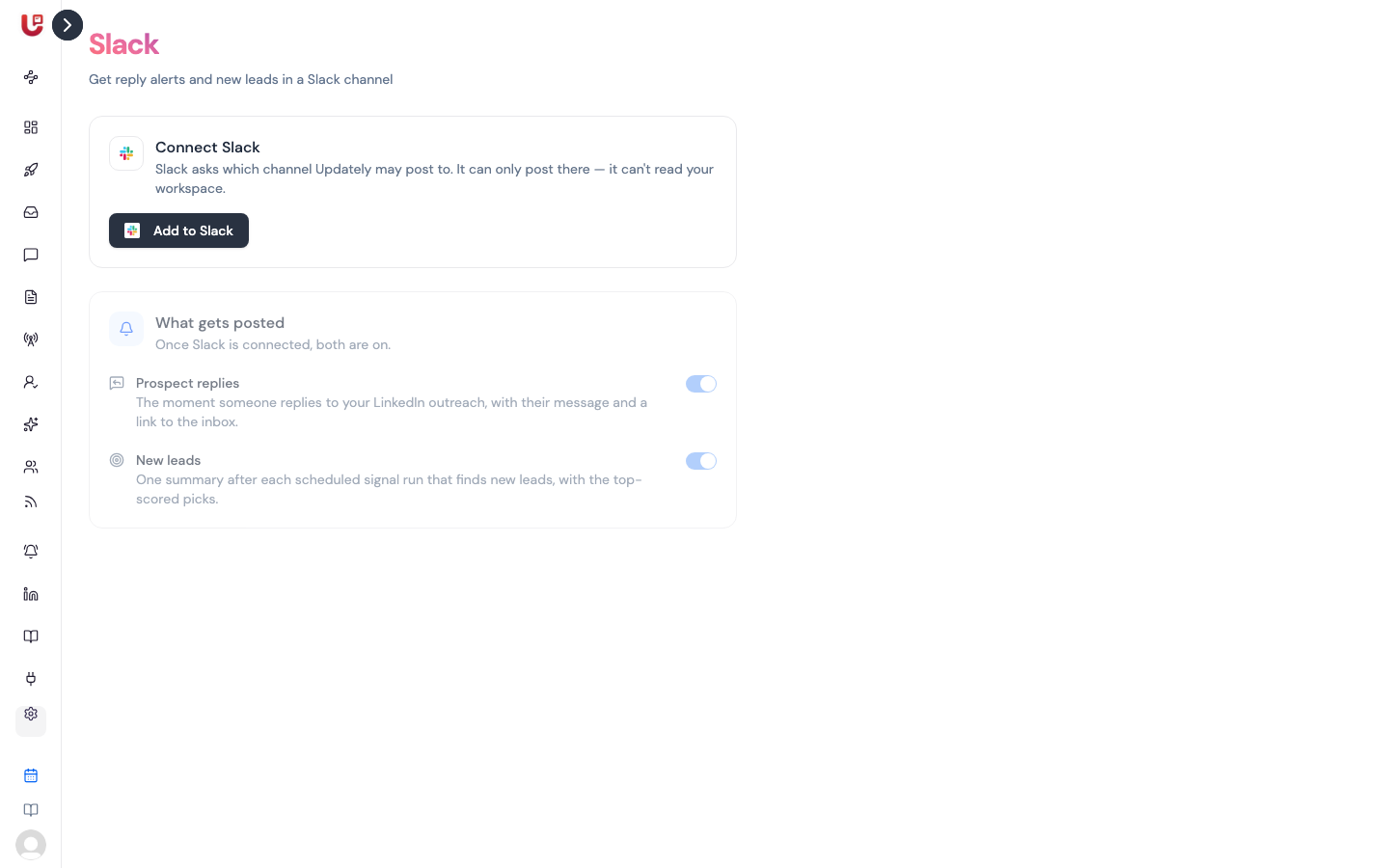
Set it up in Settings → Slack.
Connect Slack
- Go to Settings → Slack.
- Click Add to Slack.
- Slack opens and asks which channel Updately may post to. Pick one and approve.
- You're sent back to Updately, which posts a hello in that channel.
The page now shows Posting to #your-channel.
Updately can only post to the channel you picked. It can't read your Slack workspace or any of its messages.
What gets posted
Both alerts are on as soon as Slack is connected. Turn either off with its switch under What gets posted.
| Alert | When | What's in it |
|---|---|---|
| Prospect replies | The moment someone replies to your LinkedIn outreach | Their name, headline and campaign, the reply itself, and buttons to Open inbox or View on LinkedIn |
| New leads | After each scheduled signal run that finds new leads | How many new leads each signal found, the top-scored picks, and a Review leads button |
A signal run that finds nothing new posts nothing.
Test it
Click Send test message. A test post appears in your channel. If it doesn't, the connection has probably broken — see If it says Reconnect Slack below.
Change the channel
Click Change channel and pick a different one on Slack's screen. Updately posts to the new channel from then on.
Turn it off
Click Disconnect, then confirm. All Slack alerts stop.
If it says Reconnect Slack
If someone removes the Updately app from Slack, or the channel is archived, Slack stops accepting messages. The page then shows a warning and a Reconnect Slack button.
- Click Reconnect Slack.
- Pick a channel again on Slack's screen.
Or click Remove to clear the old connection without reconnecting.