
Signals
Manual / Bulk CSV Import
A signal for lists you already have — event attendees, exports from other tools, purchased lists — so they're tracked like any other source.
A Manual / Bulk CSV Import signal is for leads you bring yourself. It doesn't search for anyone. It gives your uploads a named source, so on the Contacts page you can see which leads came from which upload.
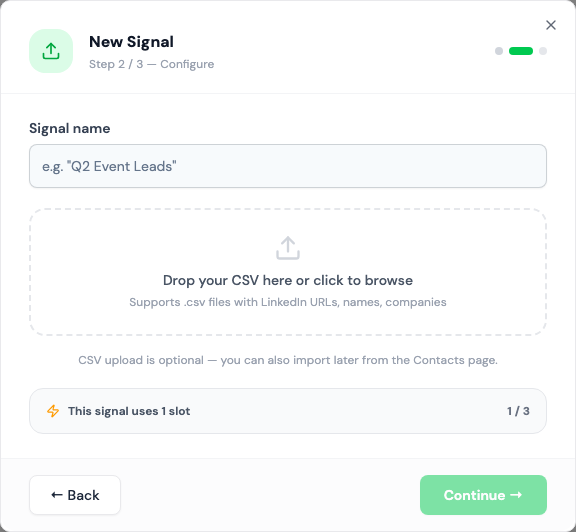
You don't need this signal to import a CSV. You can import straight into any list from Contacts & Lists. Use the signal when you want the leads tagged with a source name, such as "Q2 Event Leads".
Setting it up
- Go to Signals, click New Signal, and choose Manual / Bulk CSV Import.
- Name the signal after the source, e.g. "SaaStr 2026 attendees".
- Optionally drop in a CSV now. Updately matches the columns for you, and you can change the matches. LinkedIn URL is required.
- Pick the lists to import into, and optionally an ICP.
- Click Create Signal.
If you added a file, it's imported into every list you picked.
Importing later
An active Manual Import signal has an Import CSV button on its card. Use it for every new batch from the same source. Each lead is tagged with the signal.
Columns
| Column | Required |
|---|---|
| LinkedIn URL | Yes |
| No | |
| First Name | No |
| Last Name | No |
| Company | No |
| Title | No |
| Location | No |
Missing names, companies and titles are filled in by enrichment after the import. See Importing a CSV for the details: large files, duplicates and campaign enrolment.
How it runs
It doesn't. A Manual Import signal never runs on a schedule, and it doesn't show Last run or Leads running low. Leads only arrive when you import.
It still uses one signal slot while it's active. Pause it when you're done importing.