
Outreach
AI replies
What happens when a prospect replies, and how Reply Autopilot answers for you — or hands the conversation to you.
When someone answers your campaign, two things happen. Updately stops their sequence and reads the reply. Then, if you've turned it on, Reply Autopilot answers them within seconds using your rules — or hands the conversation to you.
What happens when someone replies
- The contact is marked Replied and leaves the sequence. They never get the next scheduled step.
- If a step was waiting for your approval, it's dropped — it no longer makes sense after they've written back.
- The reply is labelled Interested, Needs info or Not interested.
- If you've connected Slack, the reply is posted there too.
- If Reply Autopilot is on, it answers. If it's off, the reply waits for you in the Unified Inbox.
This also applies to people who finished the sequence. A reply to your last follow-up is the most common reply there is.
Before every step, Updately checks the conversation for a reply it hasn't seen yet. So even if a reply arrives at the last minute, that person doesn't get the next canned message.
How replies are read
Every reply gets one label, whether Reply Autopilot is on or not:
| Label | Means |
|---|---|
| Interested | They want to talk, see a demo or learn more |
| Needs info | They asked a question or want more detail |
| Not interested | They said no |
When the AI can't tell, it files the reply under Needs info. You can filter the inbox by each label, and Reports count them.
Turning Reply Autopilot on
Any of these switches it on for a campaign:
- On the Workflow tab, the Reply agent card at the bottom: Turn on.
- The AI Reply button in the campaign header.
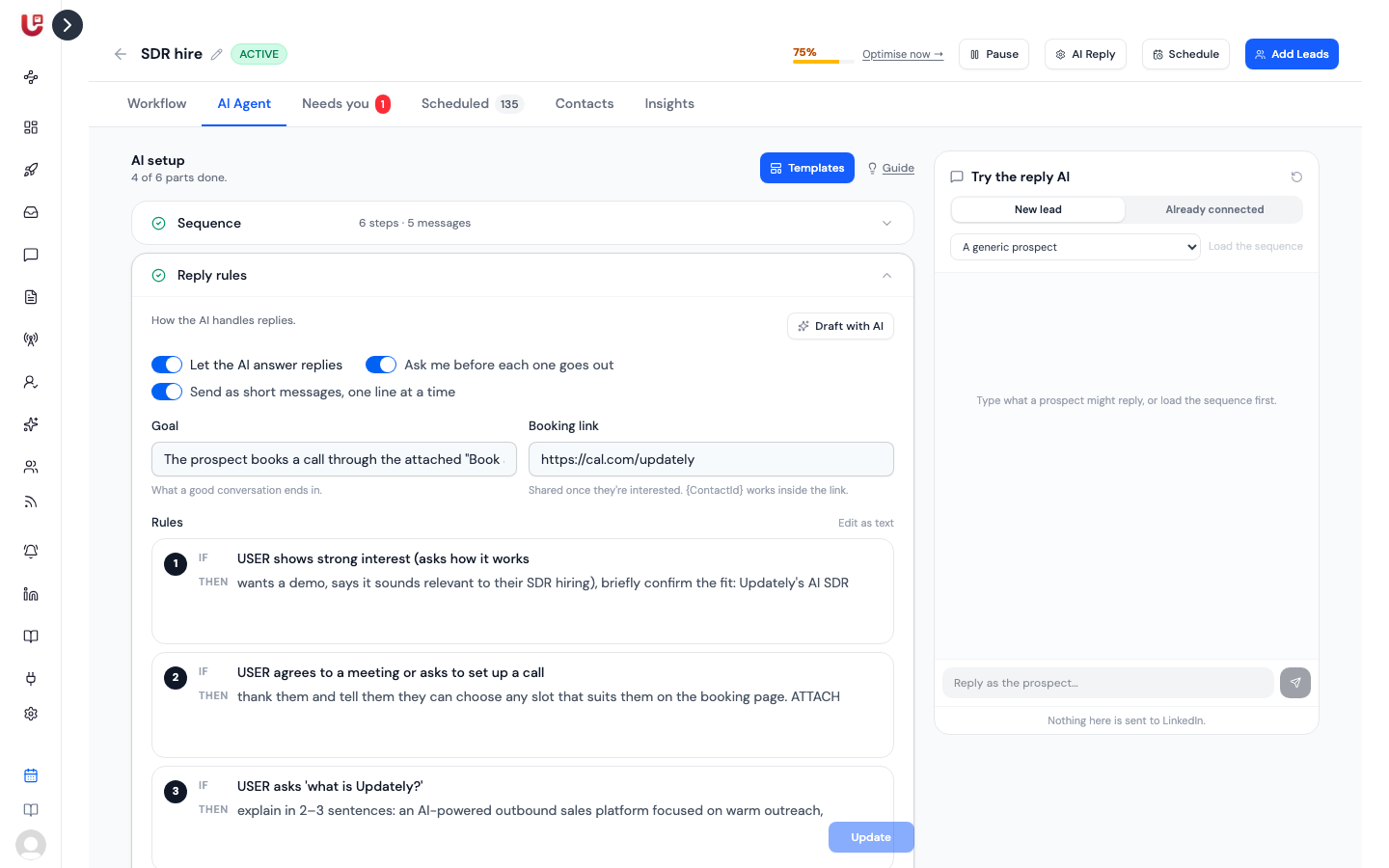
- AI Agent tab → Reply rules → Let the AI answer replies.
Reply Autopilot is set per campaign.
Reply rules
Open the AI Agent tab and expand Reply rules.
| Setting | What it does |
|---|---|
| Let the AI answer replies | Reply Autopilot on or off |
| Ask me before each one goes out | Every AI reply waits in Needs you for your approval instead of sending |
| Send as short messages, one line at a time | On by default. The AI's reply goes out as two or three short messages, a few seconds apart, the way a person texts. |
| Goal | What a good conversation ends in, e.g. "Book a 20-minute demo" |
| Booking link | Shared once they're interested. {ContactId} works inside the link. If you leave it empty, the calendar link from Settings → Organization is used. |
Then write the Rules. Each one is an If and a Then:
If they ask for proof, then ATTACH the case study.
Click Use the usual five for a starting set, or Draft with AI to have rules written from your campaign. Switch to Edit as text if you'd rather type them as a list.
Words the AI treats as commands
| Word | What it does |
|---|---|
| MUST | Always do this when the rule applies |
| "quotes" | Send these exact words |
| ATTACH | Send a file or link from Files & links |
| AS VOICE NOTE | Reply as a spoken voice note |
| SCHEDULE | Follow up later if they go quiet, e.g. "SCHEDULE a follow-up in 7 days" |
| END THE CHAT | Close the conversation |
| HUMAN INTERVENTION | Hand the conversation to you |
Click Update to save.
What the AI will and won't do
Whatever your rules say, the AI:
- Only states facts it has been given — your business description, your knowledge base, the campaign's own knowledge, and the conversation. It never invents customers, numbers or features.
- Hands the conversation to you when it doesn't have the facts to answer, when they share an email address, phone number or calendar link, when they want to move off LinkedIn, or when they ask for a person, a contract, a discount or a custom deal, or seem upset.
- Ends the conversation once the goal is met or they ask to stop. If they're not interested and no rule covers it, it closes with one polite line.
- Stops after 8 replies in one conversation and hands it to you.
- Stays silent in a conversation someone has claimed with Handle myself in the inbox, and in one it has already handed to you.
- Keeps it short — 70 words at most, one question at most, in the language the prospect writes in.
Replies that arrive late
If Updately only finds out about a reply more than 24 hours after it was sent, the AI doesn't answer it. An answer a day late reads like a bot, so the conversation is handed to you instead, with a note saying how long ago they replied.
Needs you
The campaign's Needs you tab — with a red count when something's waiting — lists everything that needs a person:
| Card | What to do |
|---|---|
| AI reply to approve | Edit if needed, then Approve & send or Discard |
| Step N to approve | A step set to Review before sending. Approve & send, Send edited, or Skip this step. An approved step outside your sending window goes out when it reopens. |
| Handed to you | Shows what they said and why the AI stepped back. Reply from the inbox, then click I've handled it, or Let the AI continue to have it answer their next message. |
The same approvals also appear in the inbox under To approve.
Follow-ups for quiet leads
Someone replied, got an answer, then went quiet. AI Agent tab → Follow-ups → Follow up with quiet leads sends them a nudge written from the conversation so far.
- Needs Reply Autopilot on.
- Up to five follow-ups. Count the wait in days or hours of silence.
- Each follow-up can have its own instruction, like "If they were interested then went quiet, ask where they landed."
- A SCHEDULE in a reply rule replaces the next follow-up once.
A first nudge after a day or more reads as attentive. Within hours, it reads as pushy.
Files & links
AI Agent tab → Files & links holds what the AI may send mid-conversation: a pricing sheet, a case study, a demo video. Up to 15 items; files up to 15 MB.
Give each one a Use when note, like "they ask what it costs". The AI sends an item when its note fits the moment, or when a rule says ATTACH it.
Voice & audience
AI Agent tab → Voice & audience tells the AI who's writing and to whom:
- Who's sending — how the AI introduces you.
- Who they are — decision maker, influencer, end user, partner or other, plus a line on how you found them.
- Your voice — paste two or three messages you really wrote. The AI copies the style, not the words.
- Voice-note voice — the voice used for voice notes.
Try it before it goes live
On the AI Agent tab, Try the reply AI is a practice chat. Type what a prospect might say and see what the AI would answer, including when it would hand off, end the chat or schedule a follow-up. Pick a real contact and click Load the sequence to start from the messages they'd actually get.
Nothing in the practice chat is sent to LinkedIn. It uses your saved rules, so click Update first.