
Signals
LinkedIn Jobs
Find companies hiring a role that means they need you, and capture the people who decide.
A LinkedIn Jobs signal finds companies that are hiring for a role you choose. It then captures people at those companies as leads.
A company hiring three SDRs is building a sales team. A company hiring a bookkeeper has finance work piling up. Hiring is one of the best timing signals there is.
Before you start: connect a LinkedIn account. This signal searches through it and can't run without one.
Fields
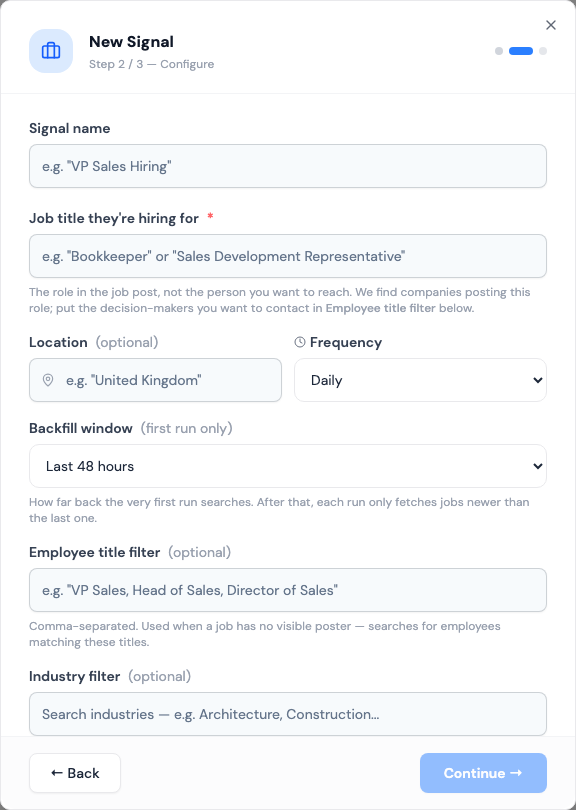
| Field | What to enter |
|---|---|
| Job title they're hiring for | The role in the job post, e.g. "Sales Development Representative". Required. |
| Location | Optional. Use the full country or city name, e.g. "United Kingdom". |
| Frequency | Daily, Every 2 days, Every 3 days or Weekly |
| Backfill window | How far back the first run looks: Last 24 hours, Last 48 hours, Last week or Last month |
| Employee title filter | Optional but recommended. The people you want to reach, e.g. "VP Sales, Head of Sales" |
| Industry filter | Optional. Only jobs at companies in these LinkedIn industries. |
Job title is the role being hired, not the person you want to talk to. Put the decision makers in Employee title filter.
Use one role per signal. LinkedIn searches the whole field as one query, so "SDR, BDR, AE" rarely matches any job. Create a separate signal for each role.
How it works
- Updately searches LinkedIn Jobs for your title, location and industries.
- Jobs posted by staffing and recruitment agencies are skipped. The agency isn't the company that needs you.
- For each job, Updately looks at the hiring team shown on the post. People whose title matches your Employee title filter become leads.
- When a job's hiring team has nobody who matches, Updately searches that company for people with your employee titles instead. It takes up to three per company.
- Everyone is enriched, scored and checked against your ICP.
Each run looks at up to 40 jobs. Each lead links back to the job post. Click View Job Posting on the Contacts page.
Leave Employee title filter empty and every member of a job's hiring team is captured. Hiring teams are mostly recruiters, so your ICP will usually reject them.
How often it runs
- The first run starts as soon as you save the signal, and looks back over the Backfill window.
- Later runs only look at jobs posted since the last run.
When you edit a signal that has already run, you can tick Reset run history. The next run then backfills the window again.
The industry filter
The industry filter stops look-alike roles. A search for "Architect" finds software architects as well as building architects. Picking Architecture and Planning keeps only the ones you want.
It can also shrink results a lot. A few industries can turn hundreds of jobs a day into a handful. Add industries only when the unfiltered results are clearly wrong, and start with broad ones.
What to expect
Volume depends on how often your role is posted where you're looking. A common role across a whole country finds far more than a niche role in one city. With a weekly frequency, each run covers a week of new jobs.
When a run saves fewer than 15 new leads, the card shows Leads running low. See Leads running low.
Tips
- Widen before you narrow. Start with no industry filter and a country, then tighten.
- Add several variants to Employee title filter: "Head of Sales, VP Sales, Sales Director, CRO".
- Use Last month as the backfill window for a new signal, so you start with a full list.