
Workspace & settings
Team members
Invite teammates into your workspace by email, choose what they can do, and remove them when they leave.
Everyone on your team can work in the same Updately workspace: the same signals, lists, campaigns and inbox. Each person gets their own login.
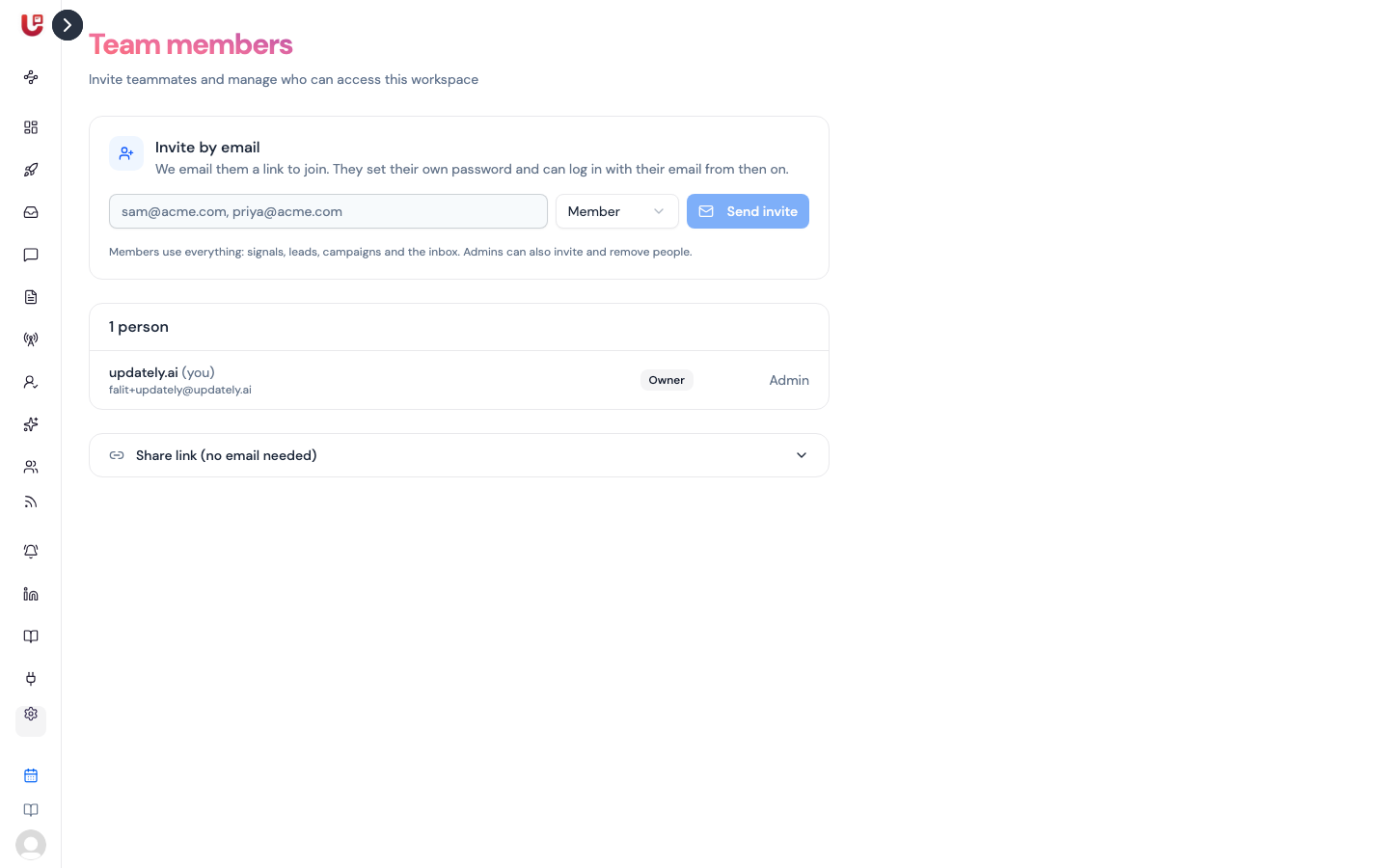
You manage this in Settings → Team members (app.updately.ai/settings/invite).
Roles
| Member | Admin | |
|---|---|---|
| Signals, leads, lists, campaigns, inbox | ✅ | ✅ |
| See who is in the workspace | ✅ | ✅ |
| Invite people | — | ✅ |
| Change someone's role | — | ✅ |
| Resend or withdraw an invite | — | ✅ |
| Remove someone | — | ✅ |
The person who created the workspace is the Owner. The owner is always an admin, and can't be changed or removed from this page.
If you don't see the Invite by email box, you're signed in as a Member. Ask an admin to invite people for you, or to make you an admin.
Invite a teammate
- Go to Settings → Team members.
- In Invite by email, type their work email. To invite several people at once, separate the emails with commas.
- Pick a role: Member or Admin.
- Click Send invite.
You'll see "Invite sent to …" and the person appears in the list with an Invited badge.
If an email can't be invited, you'll see why next to it:
| Message | What it means |
|---|---|
| already a member | They've already joined this workspace. |
| already the owner | That's the email the workspace was created with. |
| not a valid email | Check for a typo. |
What your teammate does
- They get an email titled Join [your workspace] on Updately.
- They click Accept the invite.
- On the page that opens, they enter their name and choose a password of at least 8 characters.
- They click Join workspace.
That's it. They're signed straight into your workspace.
The workspace name in the email comes from Organization Name in Organization settings.
Your teammate should not click Create Account on the login page. That creates a separate, empty workspace that isn't connected to yours. The only way into your workspace is the invite link.
If they already joined another Updately workspace as a teammate, they won't be asked for a password. They keep using the one they already have.
Logging in afterwards
- Go to app.updately.ai/login.
- Enter the email the invite was sent to and click Continue.
- Enter the password they chose and click Sign In.
Or, instead of the password, click Send Magic Link and use the link that arrives by email.
Belonging to more than one workspace
If someone has access to more than one workspace — for example, they also have their own Updately account with the same email — a workspace switcher appears at the top of the sidebar. Use it to move between workspaces.
If the invite doesn't arrive
- Ask them to check spam and promotions folders.
- Check the email in the list is spelled correctly. If it isn't, click Withdraw and invite the right address.
- Click Resend next to their name to send a fresh invite.
Resend sends a new link. Any earlier invite link for that person stops working, so tell them to use the newest email.
If the join page says This invite can't be used, the link was already used, withdrawn, or replaced by a newer one. Click Resend and have them use the new email. If they already joined, they should simply log in.
Change someone's role
Use the role dropdown next to their name and pick Member or Admin. It saves straight away.
Remove someone
- Click Remove next to their name.
- Confirm.
They're signed out straight away and can't log back in to this workspace. Everything they worked on — campaigns, lists, signals, messages — stays in the workspace.
To withdraw an invite that hasn't been accepted yet, click Withdraw instead. The link in their email stops working.
You can invite a removed person again later. They'll get a new invite and choose a new password.
The share link
Admins also see a collapsed section called Share link (no email needed). Anyone who opens that link gets into your workspace as an admin, without logging in.
The share link can't be revoked, and you can't see who has used it. Use email invites instead. Email invites give each person their own login, a role you choose, and access you can remove.
Teammates and LinkedIn accounts
Inviting a teammate gives them access to the workspace. It doesn't connect their LinkedIn. If they'll be sending outreach, they should connect their own LinkedIn account from the Accounts page after they join. See LinkedIn accounts.