
Workspace & settings
Integrations
Push prospects into HubSpot, or send outreach events to any other tool with a webhook.
Settings → Integrations (also in the sidebar as Integrations) sends what happens in your outreach to the tools your team already uses. There are two options:
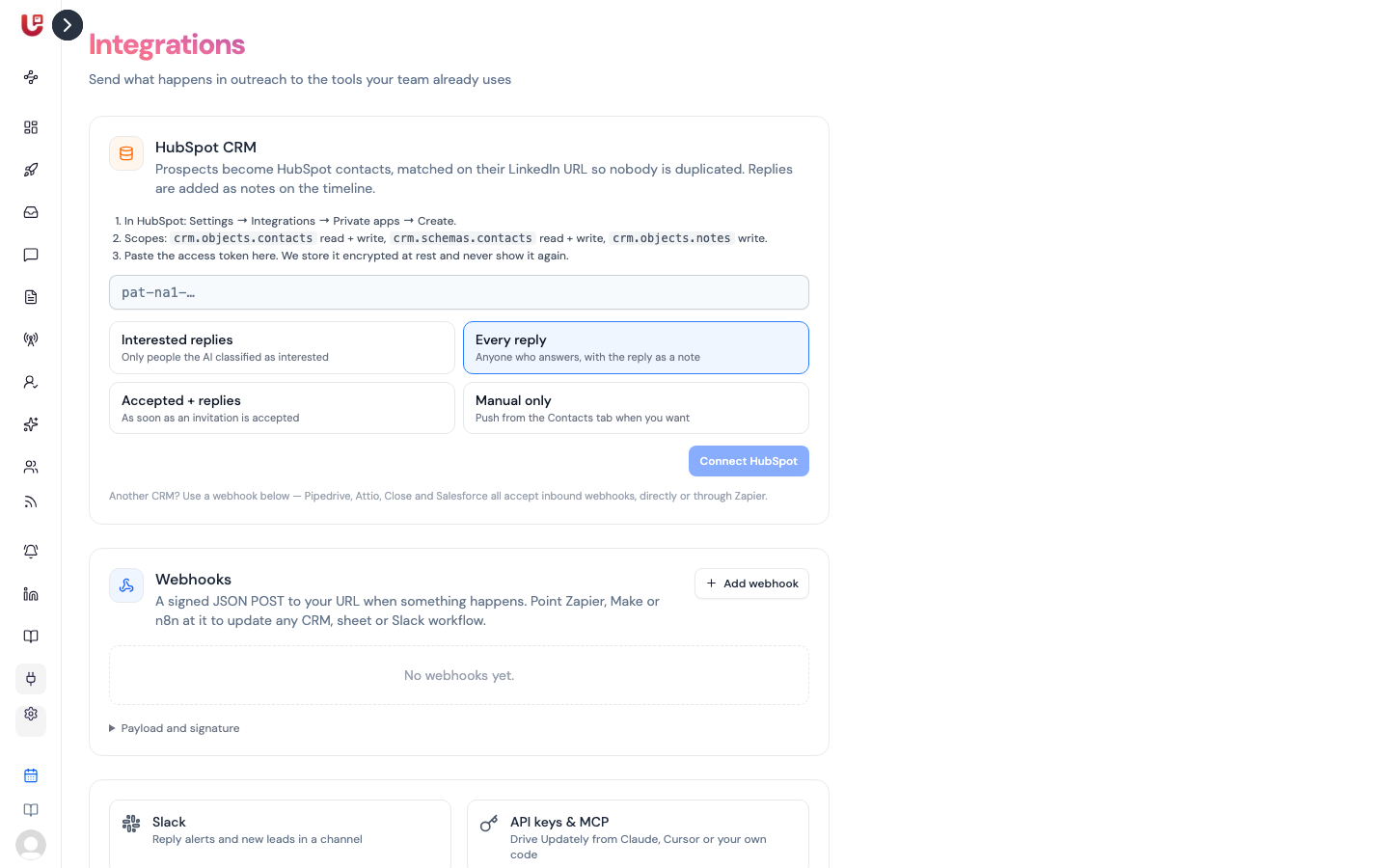
- HubSpot CRM — a built-in sync.
- Webhooks — for any other CRM, sheet or workflow, directly or through Zapier, Make or n8n.
Slack alerts and API keys are linked from the bottom of the same page. See Slack alerts and API keys and MCP.
HubSpot
Prospects become HubSpot contacts, matched on their LinkedIn URL so nobody is duplicated. Replies are added as notes on the contact's timeline.
Connect HubSpot
- In HubSpot, go to Settings → Integrations → Private apps and create a private app.
- Give it these scopes:
crm.objects.contacts— read and writecrm.schemas.contacts— read and writecrm.objects.notes— write
- Copy the app's access token.
- In Updately, paste it into the HubSpot card.
- Pick when contacts should be pushed (see below).
- Click Connect HubSpot.
The card then shows HubSpot connected. The token is stored encrypted and isn't shown again.
When contacts are pushed
| Option | What gets pushed |
|---|---|
| Interested replies | Only people the AI classified as interested |
| Every reply | Anyone who answers, with their reply as a note |
| Accepted + replies | People as soon as they accept your invitation, plus replies |
| Manual only | Nothing automatic. You push contacts yourself |
You can change this at any time from the HubSpot card.
Pushing contacts yourself
On a campaign's contacts list, click Push replied to HubSpot to send everyone who has replied in that campaign.
If something goes wrong
If a push fails, the card shows the Last error. The most common cause is a token that's missing one of the scopes above, or that was deleted in HubSpot. Click Disconnect, create a new token and connect again.
Webhooks
A webhook sends a signed JSON message to a URL you choose whenever something happens in Updately. Point it at Zapier, Make or n8n and you can update almost anything: Pipedrive, Attio, Close, Salesforce, a Google Sheet, a Slack workflow.
Add a webhook
- Click Add webhook.
- Paste the URL to send to — for example, a Zapier "Catch Hook" URL.
- Optionally add a Label so you remember what it's for, like "Zapier → Pipedrive".
- Tick the Events you want. Leave them all unticked to receive every event.
- Click Add webhook.
- Copy the signing secret that appears. It isn't shown again.
Events
| Event | When it's sent |
|---|---|
contact.replied | A prospect replied to a campaign message |
contact.interested | A reply was classified as interested |
contact.connected | An invitation was accepted |
contact.needs_human | The reply agent handed a conversation to you |
contact.completed | A contact finished the sequence without replying |
lead.captured | A signal found a new lead |
Managing webhooks
Each webhook in the list shows its URL, its events and its last delivery.
- Test sends a sample event so you can check your receiving end.
- The switch turns a webhook off without deleting it.
- The bin icon removes it.
If deliveries are failing, the list shows the error and how many failures in a row.
For developers: payload and signature
Expand Payload and signature on the page for a full example. In short:
- Each delivery is a
POSTwith a JSON body containingid,event,createdAtand adataobject (the campaign, the contact and, for replies, the reply text and intent). - Headers include
X-Updately-Event,X-Updately-DeliveryandX-Updately-Signature: sha256=<HMAC-SHA256 of the raw body with your secret>. - Updately tries each delivery three times, backing off between attempts. Any
2xxresponse counts as delivered.
Check the signature on your side before trusting a delivery. It proves the message came from Updately and wasn't changed on the way.