
Outreach
Reports
Outreach numbers for a period, per campaign or for the whole workspace — on screen, as a PDF, or emailed on a schedule.
Reports answer "what did outreach do last week?". They come in two places: the Reports page for the whole workspace, and the Insights tab on each campaign.
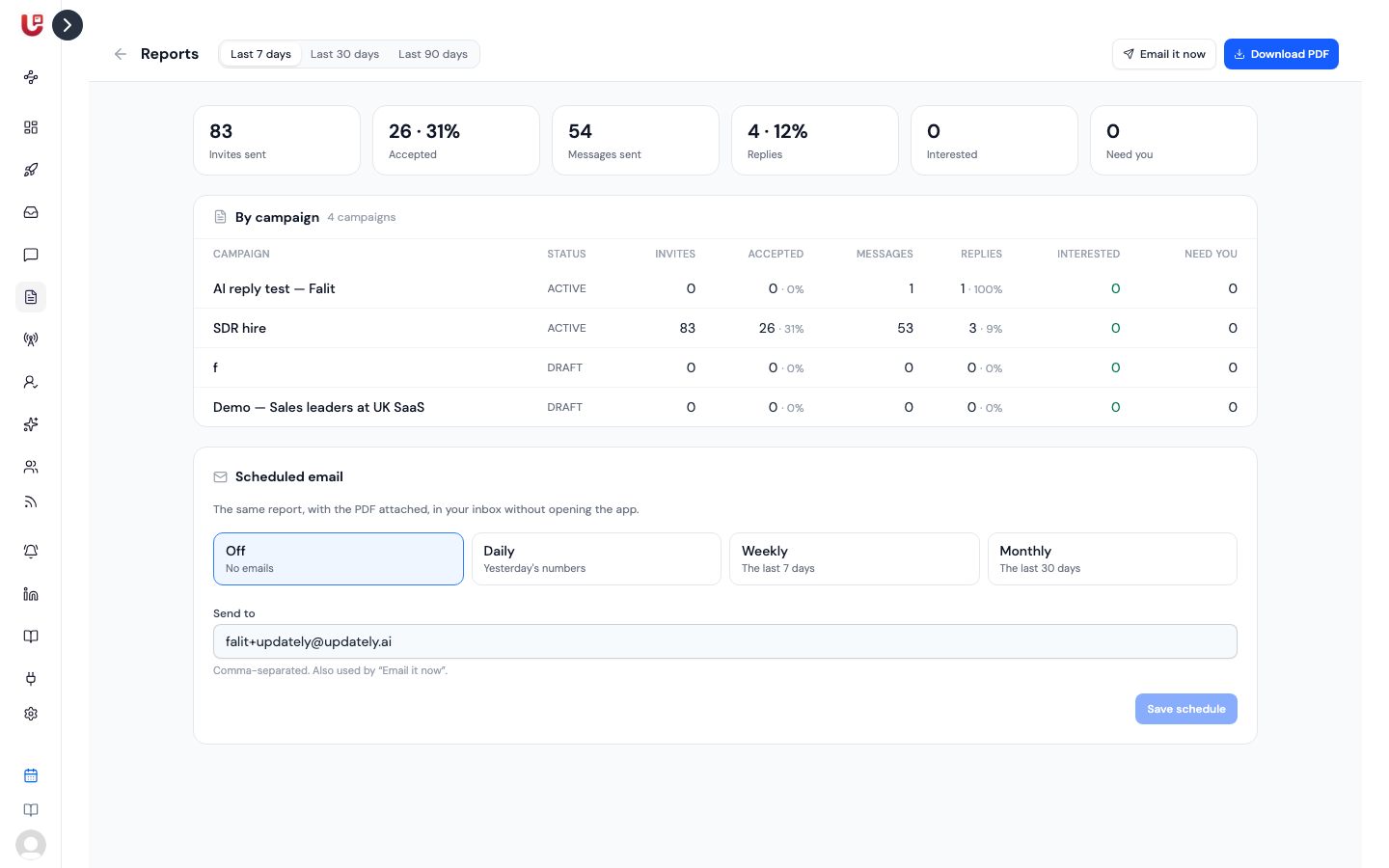
The Reports page
Open Reports in the sidebar and pick a period: Last 7 days, Last 30 days or Last 90 days.
The top row adds up every campaign:
| Number | What it counts |
|---|---|
| Invites sent | Connection requests sent in the period |
| Accepted | Requests accepted in the period, with the acceptance rate (accepted ÷ invites sent) |
| Messages sent | Messages sent in the period |
| Replies | People who replied in the period, with the reply rate (replies ÷ people messaged) |
| Interested | Replies labelled Interested |
| Need you | Conversations handed to a person and still open |
Below it, By campaign shows the same numbers for each campaign, with its status. Click a campaign name to open it.
Everything is counted by when it happened. An invite sent eight days ago and accepted yesterday shows up as accepted in the 7-day report but not as sent.
Download or email it
- Download PDF — the report for the period you've picked.
- Email it now — sends the PDF to the addresses under Send to. If that's empty, it goes to your workspace email.
Scheduled email
Under Scheduled email, choose how often the report arrives on its own:
| Option | Covers |
|---|---|
| Off | No emails |
| Daily | Yesterday's numbers |
| Weekly | The last 7 days |
| Monthly | The last 30 days |
Add the addresses under Send to, separated by commas, and click Save schedule. Each email has the PDF attached, so your team can read it without opening Updately. The page shows when the last one went out.
A campaign's Insights tab
Each campaign's Insights tab has its own numbers.
At the top, all time:
- Number of Invitations — invitations sent, accepted, and the acceptance rate.
- Number of Messages — leads contacted, leads who replied, and the reply rate.
- Daily Campaign Activity — invitations and messages per day.
Then the Report panel, for 7d, 30d or 90d:
- The same six numbers as the Reports page, for this campaign.
- How replies split: interested, need info, not interested — and how many answers the AI sent.
- A table of each step: how many were Sent, Failed and Skipped.
- The latest replies, with what each person said.
Click Download PDF for this campaign's report, or Email me this weekly to set up the scheduled email.
The all-time reply rate at the top of Insights is replies ÷ people invited. The period reports use replies ÷ people messaged. The two won't match, and that's expected.
Other exports
- Unified Inbox → Export — every conversation as a CSV, one row per message.
- A campaign's Contacts tab → Export CSV — everyone in the campaign with their status.
Reading the numbers
- Low acceptance rate — your profile or invitation note isn't landing, or you're inviting the wrong people.
- Good acceptance, few replies — the messages are the problem. See Message steps and templates.
- Lots of "Need you" — the AI is missing facts. Add them to the Knowledge base.