
Outreach
Building a campaign
Creating a campaign, building its steps in the workflow builder, adding contacts, and pausing, copying or archiving it.
This page covers the campaign screens: creating one, laying out its steps, filling it with contacts and running it. For how a contact then moves through the steps, see How campaigns work.
Create a campaign
Go to Campaigns and click New Campaign.
| Field | What it does |
|---|---|
| Campaign Name | Only you see it. Name it after the audience, e.g. "DevOps leads Q3". |
| Start from | Blank to build the steps yourself, or a template. A template fills in the sequence, reply rules and follow-ups for one kind of audience. You can edit everything before it sends. |
| Sender Account | The LinkedIn account the campaign sends from. |
| Also send from | Shown when you have more than one account. Pick extra senders and leads are spread evenly across them, each within its own limits. |
Click Create. The campaign opens as a Draft. Nothing sends until you activate it.
You can apply a template later too: open the campaign's AI Agent tab and click Templates. Applying one replaces the steps, goal, reply rules and follow-ups. Your voice, knowledge, files and booking link are kept.
The campaign page
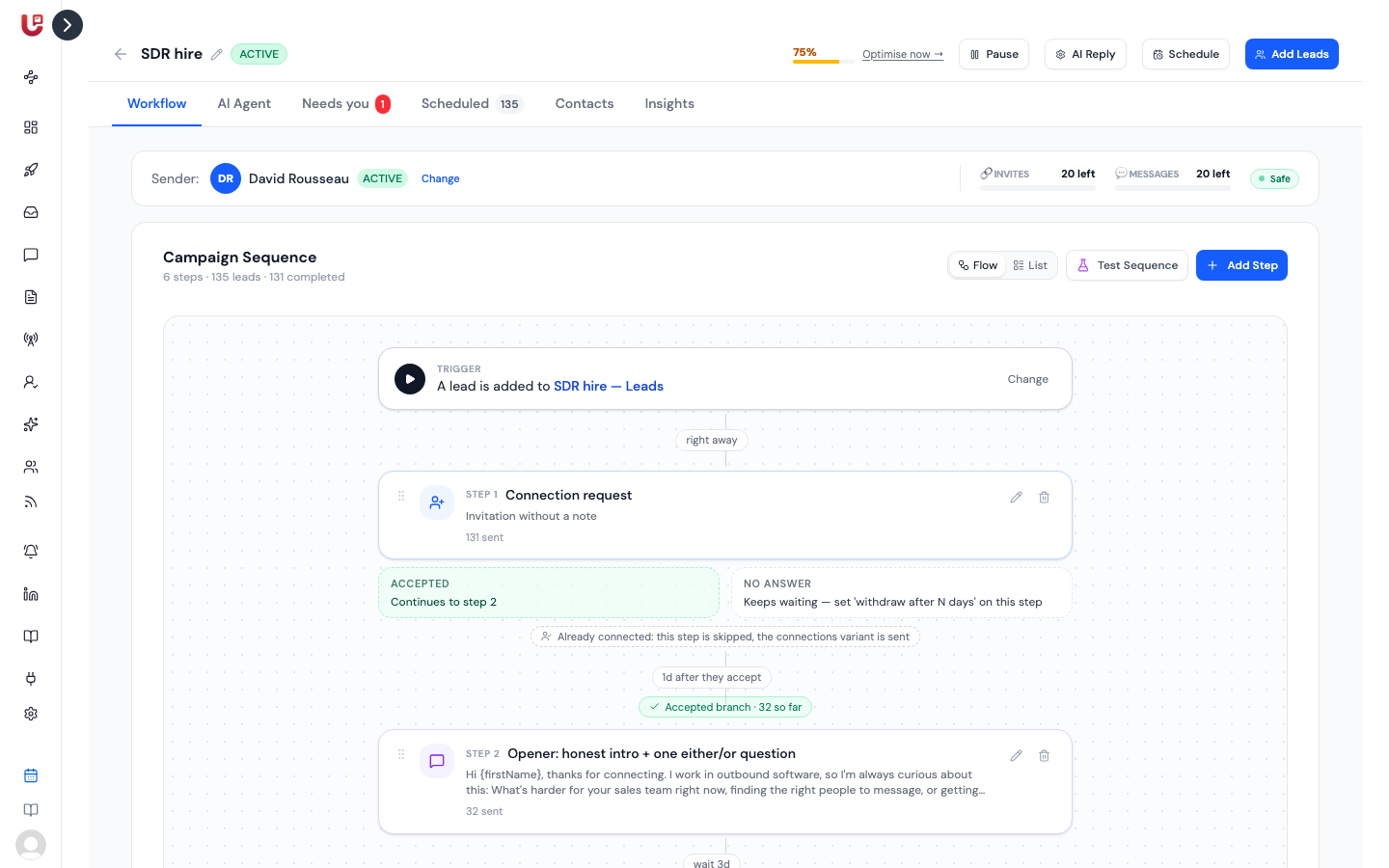
The header holds the controls you'll use most:
- Pencil next to the name — rename the campaign.
- Score and Optimise now — how well the campaign is set up, out of 100. Click it to see what's missing and answer a few questions to fill the gaps.
- Pause / Activate.
- AI Reply — turn Reply Autopilot on or off and set its call to action. See AI replies.
- Schedule — your sending window.
- Advanced — optional extras, off by default. For now: A/B testing of the sequence wording.
- Add Leads — enrol contacts.
Below it are six tabs:
| Tab | What's there |
|---|---|
| Workflow | The steps, the trigger and the reply agent |
| AI Agent | Reply rules, follow-ups, files, knowledge, webhooks, voice and audience |
| Needs you | Drafts waiting for approval and conversations the AI handed to you |
| Scheduled | Every contact with the next step and when it runs |
| Contacts | The same contacts, with enrichment and export tools |
| Insights | The campaign's numbers and report. See Reports. |
The workflow builder
The Workflow tab shows your sequence top to bottom. Switch between Flow (the visual builder) and List (a plain list) with the toggle at the top right. Your choice is remembered.
At the top sits the Trigger: the lead lists that feed this campaign. Click Change to edit it — see Trigger lists below.
In the flow view you can:
- Add a step — click + between two steps to insert one there, or Add a step at the end.
- Reorder — drag a step by its handle and drop it above or below another.
- Edit or Delete — the pencil and bin on each step.
Each step shows how many contacts it has sent to, and how many failed or were skipped.
Step types
| Step | What it does |
|---|---|
| Invitation | A connection request, with or without a note |
| Message | A direct message. Only possible once you're connected. |
| View profile | Visits their profile, so you show up in their "Who viewed your profile". Sends nothing. |
| Like posts | Reacts to one to five of their recent posts. You pick the reaction and can skip old posts. |
| Comment | AI writes a short, specific comment on their newest post — no pitch, no links. Capped at 15 a day. Skipped if they haven't posted recently. |
| Wait for webhook | Holds each contact until your form or app tells Updately they did something, like finishing a survey |
View profile, Like posts and Comment are warm-up steps. They make your name familiar before the invite or message lands, and they don't use your invite or message limits.
Paths in the flow
Updately doesn't have free-form if/else branches. The flow shows the paths that exist on their own:
- Accepted — after an invitation, the contact continues to the next step. The delay counts from when they accept.
- No answer — the contact keeps waiting. Set Withdraw if not accepted on the invitation step (1–90 days) to pull old requests, since pending requests count against LinkedIn's limit.
- Already connected — the invitation is skipped. If a message step has an Already connected version, that text is sent instead.
- If they reply at any step — the contact leaves the sequence. The reply agent answers, or the reply waits for you in the inbox. See AI replies.
Delays
Every step after the first has a wait in days and hours. The flow labels each one in plain words: "right away", "wait 2 days", "1 day after they accept", "once the webhook arrives".
Message steps
A message can be written three ways:
- Same message for everyone — your text with variables filled in. You can write a separate Already connected version for people you were connected to before.
- AI Follow-up — AI writes a personal message for each lead. You can steer it with a template.
- From the conversation — AI reads the chat so far and follows your instruction. Presets: Soft nudge, More urgency, Breakup.
And has these options:
| Option | What it does |
|---|---|
| Send as | Text, Voice note (the message is spoken in the voice set on the AI Agent tab) or Meme (AI turns the point into an image) |
| Review before sending | Each message is written, then held in Needs you until you approve, edit or skip it |
| Send line by line | Each line goes out as its own message, a few seconds apart. Up to five messages. |
| Add GIF / Add Attachment | An image, GIF, PDF or MP4 sent with the message (on Same message for everyone steps) |
| Label | A name for the step, shown in the flow |
For the writing itself, see Message steps and templates and Templates and variables.
Test before you activate
Click Test Sequence to see exactly what a prospect would receive. Pick an existing contact or paste a LinkedIn profile URL, then click Generate. Turn on Preview as an existing connection to see the Already connected versions.
Adding contacts
Click Add Leads. There are four ways in:
| Tab | How it works |
|---|---|
| Paste URLs | One LinkedIn profile URL per line |
| Upload CSV | A CSV with a column named linkedinUrl or linkedin_url |
| From Lists | Pick one or more lead lists. Everyone in them is enrolled. |
| From a campaign | Retarget people from an earlier campaign by how it went |
When you retarget From a campaign, choose who comes across:
| Filter | Who |
|---|---|
| Connected, never replied | Accepted your invite, said nothing |
| Interested, didn't convert | Replied interested but didn't book |
| Asked questions | Replied asking for more |
| Said no | For a new angle months later |
| Anyone who replied | Every reply, whatever it said |
| Everyone | Every contact that didn't error |
Anyone already connected skips the invitation in the new campaign.
A few people are left out automatically:
- Anyone on your Excluded list in Contacts & Lists.
- Anyone already in this campaign.
Big enrolments
Up to 500 contacts are enrolled straight away and the dialog tells you how many were added. Above 500, Updately enrols them in the background. You'll see "Enrolling N contacts in the background" and they appear in the campaign as they're added. You can close the page meanwhile.
Trigger lists
Instead of adding contacts by hand, let lists feed the campaign. On the Workflow tab, click Change on the trigger (or Configure in the list view) and pick one or more lists.
- While the campaign is Active, every new lead added to those lists is enrolled automatically.
- When you activate the campaign, leads already in those lists are enrolled too.
A lead in two lists that feed two different campaigns can get messages from both. See Lead lists.
Sending schedule
Click Schedule to choose when steps may go out:
- Fixed Timezone — everyone is contacted during your hours in one timezone.
- Contact Timezone + Fallback — each contact is reached during their own local hours. When their timezone is unknown, your fallback timezone is used.
Then set the Sending Hours, which apply Monday to Friday unless you've picked other working days for that LinkedIn account on the Accounts page. Contacts due outside the window wait until it reopens.
Sender accounts and limits
The Sender bar on the Workflow tab shows the sending account and how many invites and messages it has left today, with a badge:
| Badge | Meaning |
|---|---|
| Safe | Under 80% of today's limit |
| Caution | 80% or more used |
| At Limit | 95% or more used |
Click Change to pick one or more sender accounts. With several, leads are spread evenly and each account sends within its own limits. When you change senders, contacts who haven't been contacted yet are re-spread; anyone mid-sequence stays with the account that invited them. See Sending limits and account safety.
The contacts table
The Scheduled and Contacts tabs list everyone in the campaign: their status, how many steps are done, and when the next one runs. Each row shows the last reply, and a note when the AI handed the conversation to you or ended it.
- Run Now runs that contact's next step immediately instead of waiting.
- Export CSV downloads the whole list.
- Enrich lets you write up to eight questions, like "Do they sell to SMBs or
enterprise?". AI answers each one per contact from their profile and a few web
searches. Answers show on the contact, help the reply AI, and fill
{Q1},{Q2}… in your messages. - Push replied to HubSpot appears when HubSpot is connected.
Webhooks and external data
On the AI Agent tab, Webhooks & external data connects the campaign to your own forms and apps:
- Inbound webhooks (up to 10) — your form or app calls one when a contact
does something off LinkedIn. It moves them past a Wait for webhook step,
and every field it sends becomes a variable for that contact. Put
?cid={ContactId}in your form link so the webhook knows who filled it in. - Variable API — before a message that uses a variable the contact doesn't have yet, Updately asks your URL for it. If your URL fails, the message waits and retries rather than going out with a gap.
Activate, pause, copy, archive, delete
| Action | What happens |
|---|---|
| Activate | The campaign starts sending. It needs a sender account. |
| Pause | New actions stop at once. Contacts keep their place. |
| Duplicate (copy icon) | A copy named "… (copy)" is created as a Draft, with the same steps and AI settings. Contacts and trigger lists aren't copied, so the copy can't message the same people twice. |
| Archive | Hides the campaign from the list and pauses it if it was running. Click Show archived to see it again and restore it. |
| Delete | Removes the campaign and stops all its outreach. This can't be undone. |
Campaign statuses:
| Status | Meaning |
|---|---|
| Draft | Being set up. Nothing sends. |
| Active | Sending within your window and limits |
| Paused | Stopped. Resume any time. |
| Completed | Finished |
| Archived | Hidden and paused |